2 cobbler无人值守
1 介绍
python编写的管理工具
基于pxe+kickstart技术支持的二次封装,可实现选择不同发行版安装(pxe+kickstart仅能在同一发行版中变化安装)
2 cobbler工作原理
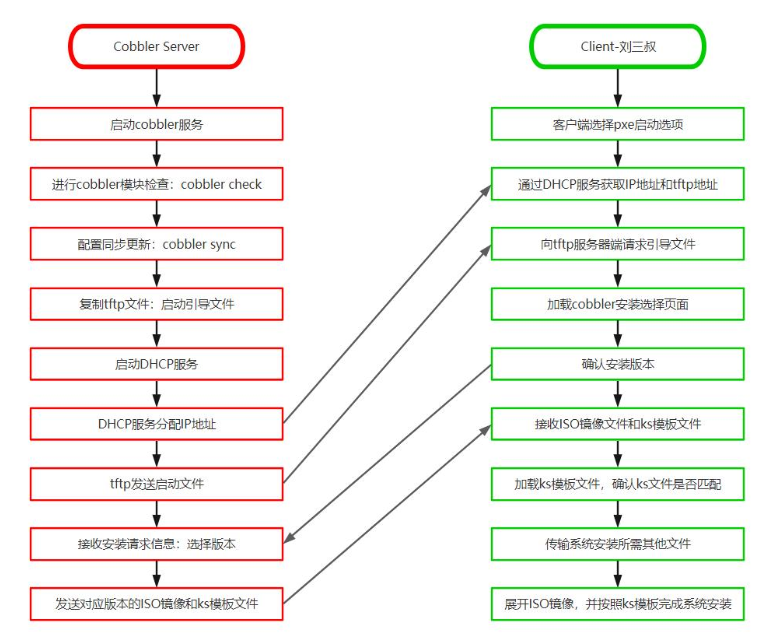
3 server准备环境
1.新建100G硬盘,分两个区
分别挂载到 /iso /var/www
                        /iso                    #放镜像的目录
                        /var/www                #放apache对外共享的资源(命令导入的镜像、一些参数关系)
2.上传多个镜像,创建目录挂载
    本次实验选择安装C6.8、C7.6
    C7.6可用本地光盘直接挂载,C6.8需要上传
注意:先挂载,在往下进行上传安装
[root@localhost ~]# yum -y install gdisk
[root@localhost ~]# gdisk /dev/sdb                                                                      #分区
[root@localhost ~]# mkfs.xfs /dev/sdb1                                                          #格式化
[root@localhost ~]# mkfs.xfs /dev/sdb2
[root@localhost ~]# vim /etc/fstab
[root@localhost ~]# tail -n 2 /etc/fstab
/dev/sdb1       /iso            xfs defaults    0 0
/dev/sdb2       /var/www        xfs     defaults        0 0
[root@localhost ~]# mkdir /var/www
[root@localhost ~]# mkdir /iso
[root@localhost ~]# mount -a ; mount |grep sdb                                          #挂载
/dev/sdb1 on /iso type xfs (rw,relatime,attr2,inode64,noquota)
/dev/sdb2 on /var/www type xfs (rw,relatime,attr2,inode64,noquota)

[root@localhost ~]# cd /iso/
[root@localhost iso]# ls
CentOS-6.8-x86_64-bin-DVD1.iso
[root@localhost iso]# mkdir centos6.8
[root@localhost iso]# mkdir centos7.6
[root@localhost iso]# vim /etc/fstab
[root@localhost iso]# tail -n 2 /etc/fstab
/dev/sr0                                /iso/centos7.6          iso9660 defaults        0 0
/iso/CentOS-6.8-x86_64-bin-DVD1.iso     /iso/centos6.8          iso9660 defaults,loop   0 0
[root@localhost iso]# mount -a
mount: /dev/sr0 写保护,将以只读方式挂载
mount: /dev/loop0 写保护,将以只读方式挂载
4 安装步骤
1)配置联网,网络源,安装扩展源
[root@localhost ~]# vim ifcfg-ens33
[root@localhost ~]# grep "DNS" ifcfg-ens33
DNS1=114.114.114.114
DNS2=8.8.8.8
[root@localhost ~]# systemctl restart network
[root@localhost ~]# mv /etc/yum.repos.d/CentOS-Base.repo.bak /etc/yum.repos.d/CentOS-Base.repo
[root@localhost ~]# yum clean all; yum -y install epel-release
2)安装cobbler、相关软件
[root@localhost ~]# yum -y install cobbler cobbler-web tftp-server dhcp httpd xinetd
[root@localhost ~]# systemctl enable cobblerd httpd --now
Created symlink from /etc/systemd/system/multi-user.target.wants/cobblerd.service to /usr/lib/systemd/system/cobblerd.service.
Created symlink from /etc/systemd/system/multi-user.target.wants/httpd.service to /usr/lib/systemd/system/httpd.service.
3)配置cobbler
3.1 cobbler check检查文件并解决
问题1、2:修改 /etc/cobbler/settings 中的 seerver next_server选项
[root@localhost ~]# cobbler check
The following are potential configuration items that you may want to fix:

1 : The 'server' field in /etc/cobbler/settings must be set to something other than localhost, or kickstarting features will not work.  This should be a resolvable hostname or IP for the boot server as reachable by all machines that will use it.
[root@localhost ~]# vim /etc/cobbler/settings
[root@localhost ~]# egrep "^server|^next_server" /etc/cobbler/settings
next_server: 192.168.18.201
server: 192.168.18.201
[root@localhost ~]# systemctl restart cobblerd
问题3:tftp配置文件中的disable改为no
3 : change 'disable' to 'no' in /etc/xinetd.d/tftp
[root@localhost ~]# vim /etc/xinetd.d/tftp
[root@localhost ~]# grep "disable" /etc/xinetd.d/tftp
        disable                 = no
问题4:解决cobbler-loader,利用大神准备的cobbler-loader压缩包
4 : Some network boot-loaders are missing from /var/lib/cobbler/loaders.  If you only want to handle x86/x86_64 netbooting, you may ensure that you have installed a *recent* version of the syslinux package installed and can ignore this message entirely.  Files in this directory, should you want to support all architectures, should include pxelinux.0, menu.c32, elilo.efi, and yaboot.
[root@localhost ~]# tar -xf cobbler-loaders.tar.gz
[root@localhost ~]# ls
anaconda-ks.cfg  cobbler-loaders.tar.gz  ifcfg-ens33  var
[root@localhost ~]# yum -y install grub2-efi-x64-modules grub2-pc-modules
[root@localhost ~]# cp -a /root/var/lib/cobbler/loaders/* /var/lib/cobbler/loaders/
问题5:将rsyncd启动并加入自启动
5 : enable and start rsyncd.service with systemctl
[root@localhost ~]# systemctl enable rsyncd --now
Created symlink from /etc/systemd/system/multi-user.target.wants/rsyncd.service to /usr/lib/systemd/system/rsyncd.service.
[root@localhost ~]# systemctl status rsyncd
● rsyncd.service - fast remote file copy program daemon
   Loaded: loaded (/usr/lib/systemd/system/rsyncd.service; enabled; vendor preset: disabled)
   Active: active (running) since 二 2022-11-29 15:25:39 CST; 10s ago
 Main PID: 41581 (rsync)
   CGroup: /system.slice/rsyncd.service
           └─41581 /usr/bin/rsync --daemon --no-detach

11月 29 15:25:39 localhost.localdomain systemd[1]: Started fast remote file copy program daemon.
11月 29 15:25:39 localhost.localdomain rsyncd[41581]: rsyncd version 3.1.2 starting, listening on port 873
问题6:关于debian系统的问题,可不用解决
6 : debmirror package is not installed, it will be required to manage debian deployments and repositories

#问题7:yum安装pykickstart
7 : ksvalidator was not found, install pykickstart
[root@localhost ~]# yum -y install pykickstart
问题8:cobbler设置密码
8 : The default password used by the sample templates for newly installed machines (default_password_crypted in /etc/cobbler/settings) is still set to 'cobbler' and should be changed, try: "openssl passwd -1 -salt 'random-phrase-here' 'your-password-here'" to generate new one
[root@localhost ~]# openssl passwd -1 -salt 'root' '123456'
$1$root$j0bp.KLPyr.u9kgQ428D10
[root@localhost ~]# vim /etc/cobbler/settings
[root@localhost ~]# grep "^default_password" /etc/cobbler/settings
default_password_crypted: "$1$root$j0bp.KLPyr.u9kgQ428D10"
[root@localhost ~]# systemctl restart cobblerd
问题9:yum安装fence-agents
9 : fencing tools were not found, and are required to use the (optional) power management features. install cman or fence-agents to use them
[root@localhost ~]# yum -y install fence-agents

[root@localhost ~]# cobbler check                                                                                      #解决完之后再次检查,再执行cobbler sync
The following are potential configuration items that you may want to fix:

1 : debmirror package is not installed, it will be required to manage debian deployments and repositories

Restart cobblerd and then run 'cobbler sync' to apply changes.

[root@localhost ~]# cobbler sync
3.2 配置cobbler-dhcp
[root@localhost ~]# vim /etc/cobbler/settings
[root@localhost ~]# grep "^manage_dhcp" /etc/cobbler/settings
manage_dhcp: 1
[root@localhost ~]# vim /etc/cobbler/dhcp.template
[root@localhost ~]# grep "^subnet" -A 4 /etc/cobbler/dhcp.template
subnet 192.168.18.0 netmask 255.255.255.0 {
     option routers             192.168.18.2;
     option domain-name-servers 114.114.114.114;
     option subnet-mask         255.255.255.0;
     range dynamic-bootp        192.168.18.50 192.168.18.99;
[root@localhost ~]# cobbler sync
3.3 重启所有服务,加入自启动
[root@localhost ~]# systemctl restart rsyncd dhcpd xinetd cobblerd tftp.socket tftp
[root@localhost ~]# systemctl enable rsyncd dhcpd xinetd cobblerd tftp.socket tftp
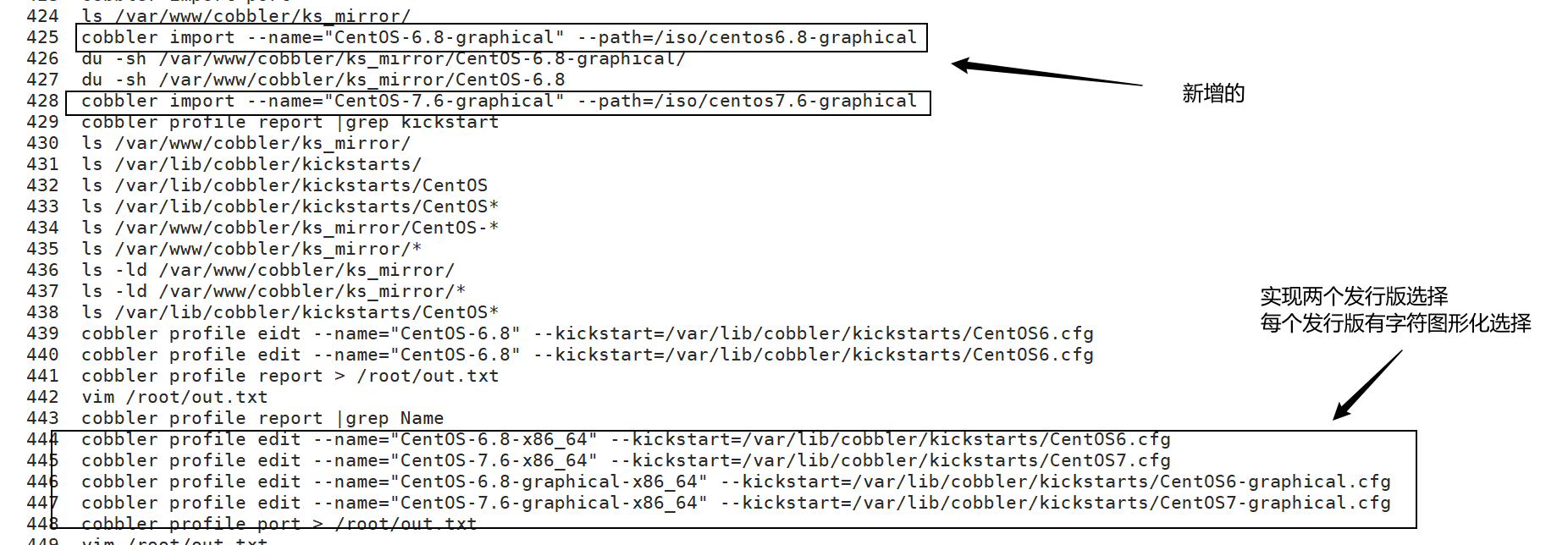
4)导入镜像、绑定ks文件
1 导入镜像到apache共享目录下
[root@localhost ~]# cobbler import --name="CentOS-7.6" --path=/iso/centos7.6
[root@localhost ~]# cobbler import --name="CentOS-6.8" --path=/iso/centos6.8
[root@localhost ~]# cobbler import --name="CentOS-7.6-graphical" --path=/iso/centos7.6
[root@localhost ~]# cobbler import --name="CentOS-6.8-graphical" --path=/iso/centos6.8
[root@localhost ~]# ll /var/www/cobbler/ks_mirror/                                              #镜像导入后的位置
总用量 8
dr-xr-xr-x 7 root root 4096 5月  23 2016 CentOS-6.8
dr-xr-xr-x 7 root root 4096 5月  23 2016 CentOS-6.8-graphical
drwxrwxr-x 8 root root  254 11月 26 2018 CentOS-7.6
drwxrwxr-x 8 root root  254 11月 26 2018 CentOS-7.6-graphical
drwxr-xr-x 2 root root  146 12月  4 19:11 config
[root@localhost ~]# vim /var/lib/tftpboot/pxelinux.cfg/default                  #tftp共享的默认菜单
2 生成ks文件
CentOS7-graphical.cfg #C7.6的图形化
[root@localhost ~]# vim /var/lib/cobbler/kickstarts/CentOS7-graphical.cfg
#version=DEVEL
auth --enableshadow --passalgo=sha512
url --url=http://192.168.18.201/cobbler/ks_mirror/CentOS-7.6/
graphical
firstboot --enable
ignoredisk --only-use=sda
keyboard --vckeymap=cn --xlayouts='cn'
lang zh_CN.UTF-8
network  --bootproto=dhcp --device=ens33 --onboot=on --ipv6=auto --no-activate
network  --hostname=localhost.localdomain
rootpw --iscrypted $6$bnwp14GWfWDgVw4y$7sr9QiO7hE90RkE12p3i.YMHmpzCsKMC7lkh5AH43FQB0uPHJjYaIzePu4oLrgqCpmH5yVY6dTOn6aLxEqwT1/
firewall --disabled
selinux --disabled
services --disabled="chronyd"
timezone Asia/Shanghai --isUtc --nontp
bootloader --append=" crashkernel=auto" --location=mbr --boot-drive=sda
clearpart --none --initlabel
part /boot --fstype="xfs" --ondisk=sda --size=1024
part swap --fstype="swap" --ondisk=sda --size=2048
part / --fstype="xfs" --ondisk=sda --grow --size=1

%packages
@^web-server-environment
@base
@core
@web-server
kexec-tools

%end

%post --interpreter=bash
sed -i "115s/#//;115s/yes/no/" /etc/ssh/sshd_config
systemctl restart sshd
systemctl stop NetworkManager ;systemctl disable NetworkManager
cd /etc/yum.repos.d/
mkdir back
mv C* back/
echo "[centos7]
name=centos7 repo for kickstart
baseurl=http://192.168.18.201/cobbler/ks_mirror/CentOS-7.6/
enable=1
gpgcheck=0" >> CentOS-Media.repo
yum -y groupinstall "X Window System"
yum -y groupinstall "GNOME Desktop"
yum -y install gcc* lrzsz wget unzip
ln -s /etc/sysconfig/network-scripts/ifcfg-ens33 /root/
systemctl set-default graphical.target

%end
reboot
CentOS7.cfg #C7的基础服务环境
[root@localhost ~]# vim /var/lib/cobbler/kickstarts/CentOS7.cfg
#version=DEVEL
auth --enableshadow --passalgo=sha512
url --url=http://192.168.18.201/cobbler/ks_mirror/CentOS-7.6/
graphical
firstboot --enable
ignoredisk --only-use=sda
keyboard --vckeymap=cn --xlayouts='cn'
lang zh_CN.UTF-8
network  --bootproto=dhcp --device=ens33 --onboot=on --ipv6=auto --no-activate
network  --hostname=localhost.localdomain
rootpw --iscrypted $6$bnwp14GWfWDgVw4y$7sr9QiO7hE90RkE12p3i.YMHmpzCsKMC7lkh5AH43FQB0uPHJjYaIzePu4oLrgqCpmH5yVY6dTOn6aLxEqwT1/
firewall --disabled
selinux --disabled
services --disabled="chronyd"
timezone Asia/Shanghai --isUtc --nontp
bootloader --append=" crashkernel=auto" --location=mbr --boot-drive=sda
clearpart --none --initlabel
part /boot --fstype="xfs" --ondisk=sda --size=1024
part swap --fstype="swap" --ondisk=sda --size=2048
part / --fstype="xfs" --ondisk=sda --grow --size=1

%packages
@^web-server-environment
@base
@core
@web-server
kexec-tools

%end

%post --interpreter=bash
sed -i "115s/#//;115s/yes/no/" /etc/ssh/sshd_config
systemctl restart sshd
systemctl stop NetworkManager ;systemctl disable NetworkManager
cd /etc/yum.repos.d/
mkdir back
mv C* back/
echo "[centos7]
name=centos7 repo for kickstart
baseurl=http://192.168.18.201/cobbler/ks_mirror/CentOS-7.6/
enable=1
gpgcheck=0" >> CentOS-Media.repo
yum -y install gcc* lrzsz wget unzip
ln -s /etc/sysconfig/network-scripts/ifcfg-ens33 /root/

%end

reboot
CentOS6-graphical.cfg #C6的图形化
[root@localhost ~]# vim /var/lib/cobbler/kickstarts/CentOS6-graphical.cfg
#centos 6.8 kickstart
firewall --disabled
text
install
url --url="http://192.168.18.201/cobbler/ks_mirror/CentOS-6.8/"
lang en_US.UTF-8
keyboard us
rootpw --iscrypted $6$bnwp14GWfWDgVw4y$7sr9QiO7hE90RkE12p3i.YMHmpzCsKMC7lkh5AH43FQB0uPHJjYaIzePu4oLrgqCpmH5yVY6dTOn6aLxEqwT1/
auth  --useshadow  --passalgo=sha512
firstboot --enable
selinux --disabled
timezone  Asia/Shanghai
network  --bootproto=dhcp --device=eth0 --onboot=on
bootloader --location=mbr
zerombr
clearpart --all --initlabel
part /boot --fstype="ext4" --ondisk=sda --size=1024
part swap --fstype="swap" --ondisk=sda --size=2048
part / --fstype="ext4" --ondisk=sda --grow --size=1

%packages
@basic-desktop
@desktop-debugging
@desktop-platform
@fonts
@general-desktop
@graphical-admin-tools
@input-methods
@kde-desktop
@legacy-x
@remote-desktop-clients
@x11

%end
reboot
CentOS6.cfg #C6的基础服务环境
[root@localhost ~]# vim /var/lib/cobbler/kickstarts/CentOS6.cfg
#centos 6.8 kickstart
firewall --disabled
text
install
url --url="http://192.168.18.201/cobbler/ks_mirror/CentOS-6.8/"
lang en_US.UTF-8
keyboard us
rootpw --iscrypted $6$bnwp14GWfWDgVw4y$7sr9QiO7hE90RkE12p3i.YMHmpzCsKMC7lkh5AH43FQB0uPHJjYaIzePu4oLrgqCpmH5yVY6dTOn6aLxEqwT1/
auth  --useshadow  --passalgo=sha512
firstboot --enable
selinux --disabled
timezone  Asia/Shanghai
network  --bootproto=dhcp --device=eth0 --onboot=on
bootloader --location=mbr
zerombr
clearpart --all --initlabel
part /boot --fstype="ext4" --ondisk=sda --size=1024
part swap --fstype="swap" --ondisk=sda --size=2048
part / --fstype="ext4" --ondisk=sda --grow --size=1

%packages
@chinese-support
@core
@server-policy
@workstation-policy
%end

reboot
3 指定镜像的profile配置文件,将ks文件绑定指定的镜像
[root@localhost ~]# cobbler profile list
   CentOS-6.8-graphical-x86_64
   CentOS-6.8-x86_64
   CentOS-7.6-graphical-x86_64
   CentOS-7.6-x86_64
[root@localhost ~]# cobbler profile report --name=CentOS-7.6-x86_64 |grep kickstart                                    #查看默认使用的ks文件
Kickstart                      : /var/lib/cobbler/kickstarts/sample_end.ks
[root@localhost ~]# cobbler profile report --name=CentOS-6.8-x86_64 |grep kickstart
Kickstart                      : /var/lib/cobbler/kickstarts/sample_end.ks
[root@localhost ~]# ls /var/lib/cobbler/kickstarts/CentOS*
/var/lib/cobbler/kickstarts/CentOS6.cfg            /var/lib/cobbler/kickstarts/CentOS7.cfg
/var/lib/cobbler/kickstarts/CentOS6-graphical.cfg  /var/lib/cobbler/kickstarts/CentOS7-graphical.cfg

#修改不同菜单选项的ks文件
[root@localhost ~]# cobbler profile edit --name=CentOS-7.6-x86_64 --kickstart=/var/lib/cobbler/kickstarts/CentOS7.cfg
[root@localhost ~]# cobbler profile edit --name=CentOS-7.6-graphical-x86_64 --kickstart=/var/lib/cobbler/kickstarts/CentOS7-graphical.cfg
[root@localhost ~]# cobbler profile edit --name=CentOS-6.8-x86_64 --kickstart=/var/lib/cobbler/kickstarts/CentOS6.cfg
[root@localhost ~]# cobbler profile edit --name=CentOS-6.8-graphical-x86_64 --kickstart=/var/lib/cobbler/kickstarts/CentOS6-graphical.cfg
[root@localhost ~]# cobbler profile report --name=CentOS-7.6-x86_64 |grep kickstart                                    #再次查看并确认ks文件
Kickstart                      : /var/lib/cobbler/kickstarts/CentOS7.cfg
[root@localhost ~]# cobbler profile report --name=CentOS-6.8-x86_64 |grep kickstart
Kickstart                      : /var/lib/cobbler/kickstarts/CentOS6.cfg
[root@localhost ~]# cobbler profile report --name=CentOS-6.8-graphical-x86_64 |grep kickstart
Kickstart                      : /var/lib/cobbler/kickstarts/CentOS6-graphical.cfg
[root@localhost ~]# cobbler profile report --name=CentOS-7.6-graphical-x86_64 |grep kickstart
Kickstart                      : /var/lib/cobbler/kickstarts/CentOS7-graphical.cfg
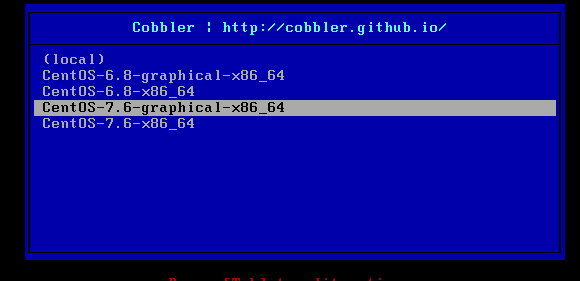
4 两台测试机测试安装
分别安装6版本、7版本
注意: /var/lib/tftpboot/pxelinux.cfg/default
menu default            #默认选中的项
ontimeout                       #超时后启动的项(若删除后,以默认选中项为准,进行安装)
拓展:
iostat                          #查看硬盘数据传输状态
iptables        -L              #查看生效的防火墙

安装完成后检查ks文件中的配置是否生效
注意:ks模板中的脚本部分不要有变量定义
纯字符安装用英文安装,中文纯字符安装会失败
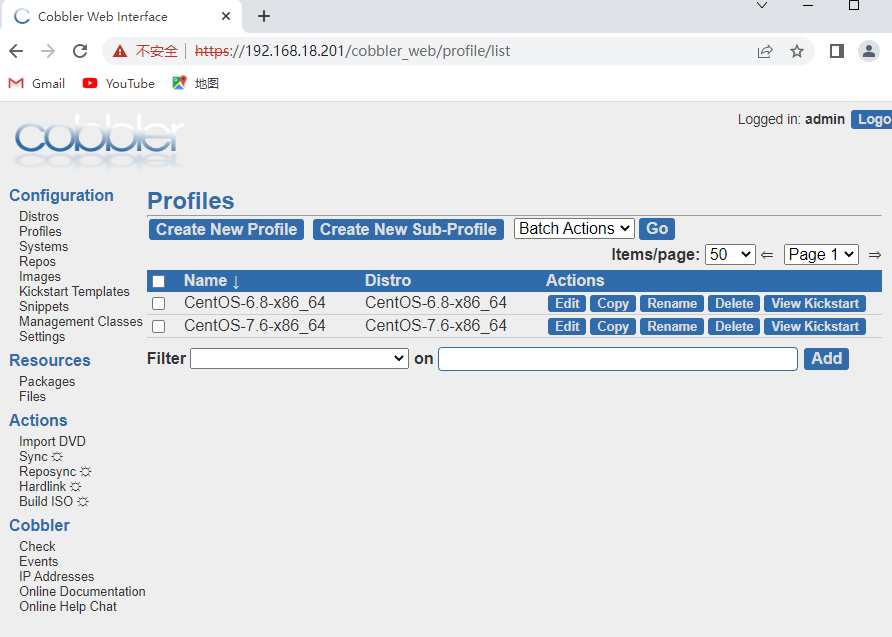
5 设置web管理终端
[root@localhost ~]# cat /etc/cobbler/modules.conf |grep -A 1 "\[authentication"                         #确认配置文件中 能使用密码登录
[authentication]
module = authn_configfile

[root@localhost ~]# htdigest -c /etc/cobbler/users.digest Cobbler admin                         #设置登录的用户:admin、密码123456
                                                                                                                       #Cobbler,首字母大写
浏览器访问: https://192.168.18.201/cobbler_web
注意:一定要用https
6 相关目录和命令帮助
配置文件目录:
/etc/cobbler
/etc/cobbler/settings : cobbler 主配置文件
/etc/cobbler/iso/: iso模板配置文件
/etc/cobbler/pxe: pxe模板文件
/etc/cobbler/power: 电源配置文件
/etc/cobbler/user.conf: web服务授权配置文件
/etc/cobbler/users.digest: web访问的用户名密码配置文件
/etc/cobbler/dhcp.template : dhcp服务器的的配置末班
/etc/cobbler/dnsmasq.template : dns服务器的配置模板
/etc/cobbler/tftpd.template : tftp服务的配置模板
/etc/cobbler/modules.conf : 模块的配置文件
数据目录:
/var/lib/cobbler/config/: 用于存放distros,system,profiles 等信 息配置文件
/var/lib/cobbler/triggers/: 用于存放用户定义的cobbler命令
/var/lib/cobbler/kickstart/: 默认存放kickstart文件
/var/lib/cobbler/loaders/: 存放各种引导程序 ,镜像目录
/var/www/cobbler/ks_mirror/: 导入的发行版系统的所有数据
/var/www/cobbler/images/ : 导入发行版的kernel和initrd镜像用于 远程网络启动
/var/www/cobbler/repo_mirror/: yum 仓库存储目录
日志目录:
/var/log/cobbler/installing: 客户端安装日志
/var/log/cobbler/cobbler.log : cobbler日志
cobbler commands 介绍:
cobbler check 核对当前设置是否有问题
cobbler list 列出所有的cobbler元素
cobbler report 列出元素的详细信息
cobbler sync 同步配置到数据目录,更改配置最好都要执行下
cobbler reposync 同步yum仓库
cobbler distro 查看导入的发行版系统信息
cobbler system 查看添加的系统信息
cobbler profile 查看配置信息